2015-07-07

好久沒有寫DELPHI最近有一需求 記錄一下

用DELPHI開發一支程式自動檢查檔案是否建立超過天數自動刪除功能,
需求如下說明
1. 可以定義檢查路徑,路徑需可設多個
2. 可以設定副檔名,如:jpg、png等,大小寫不分
3. 可以設定天數,例如:90、100天
4. 可以往下尋找次目錄的所有檔案,目錄可能會有很多層
5. 判斷該檔案建立的時間距離目前時間的天數


此版會刪除含以下子目錄 過期之檔案 設定時 請特別注意
下圖未勾刪除

下圖 勾刪除 按儲存後 正式刪除


unit Unit1;

interface

uses
  Winapi.Windows, Winapi.Messages, System.SysUtils, System.Variants, System.Classes, Vcl.Graphics,
  Vcl.Controls, Vcl.Forms, Vcl.Dialogs, Vcl.StdCtrls, IOUtils, Types, inifiles;

type
  TchkFileForm = class(TForm)
    Memo1: TMemo;
    Button1: TButton;
    Days: TEdit;
    Label1: TLabel;
    Label2: TLabel;
    TLabel3: TLabel;
    Label3: TLabel;
    FileExt: TEdit;
    Label4: TLabel;
    Memo2: TMemo;
    Label5: TLabel;
    CheckBox1: TCheckBox;
    procedure Button1Click(Sender: TObject);
    procedure FormShow(Sender: TObject);
    procedure FormClose(Sender: TObject; var Action: TCloseAction);
  private
    { Private declarations }
  public
    { Public declarations }
    procedure run();
    function dayDec(s,e : String):Integer;
    function chkExt(ext: String):Boolean;
    procedure getDirs(Path: String);
    procedure getFiles(Path: String);
  end;

var
  chkFileForm: TchkFileForm;
  myinifile:TInifile;
implementation

{$R *.dfm}

procedure TchkFileForm.Button1Click(Sender: TObject);
var
  s1 : TStringList;
  myFile : TextFile;
begin
  // days
  myinifile.writeinteger('setini','Days', strtoint(Days.Text));
  // FileExt
  myinifile.writestring('setini', 'FileExt', FileExt.Text);
  // 正式刪除
  myinifile.writebool('setini', 'isDel', CheckBox1.Checked);
  //
  // 路徑資料
  s1:=TStringList.Create;
  s1.Text:=Memo1.Text;
  s1.SaveToFile('chkFilePath.txt');
  s1.Free;

  ShowMessage('儲存完成!');
  run();
end;

procedure TchkFileForm.FormClose(Sender: TObject; var Action: TCloseAction);
begin
  myinifile.Destroy;
end;

procedure TchkFileForm.FormShow(Sender: TObject);
var
  myFile : TextFile;
  text   : string;
  filename:string;
begin
  filename := ExtractFilePath(paramstr(0))+'chkFile.ini';
  myinifile := TInifile.Create(filename);
  // days
  Days.Text := inttostr(myinifile.readinteger('setini', 'Days', 90));
  // FileExt
  FileExt.Text := myinifile.ReadString('setini', 'FileExt', 'jpg,png');
  // 正式刪除
  CheckBox1.Checked := myinifile.readbool('setini', 'isDel', False);
  // 路徑資料
  if FileExists('chkFilePath.txt') then
  begin
    Memo1.Lines.LoadFromFile('chkFilePath.txt');
  end;

  run();
end;

// 執行設定目錄
procedure TchkFileForm.run();
var
  i    : Integer;
  Path : String;
begin
  Memo2.Clear;
  for i := 0 to memo1.lines.count-1 do
  begin
    Path :=  Memo1.Lines[i];
    getDirs(Path)
  end;
  Memo2.Lines.Add('執行完成!');
end;
// 取出子目錄
procedure TchkFileForm.getDirs(Path: String);
var
  dfs: TStringDynArray;
  pathstr: String;
begin
  if directoryexists(Path) then
  begin
    Memo2.Lines.Add(Path);
    getFiles(Path); // 取出目錄內檔案
    dfs := TDirectory.GetFileSystemEntries(Path);
    for pathstr in dfs do getDirs(pathstr);
  end;
end;
// 取出目錄內檔案 檢查是否預期 刪除
procedure TchkFileForm.getFiles(Path: String);
var
  files : TStringDynArray;
  dir   : TDirectory;
  fname, ext  : String;
  toDay,fiDay : string;
  dd,sday : Integer;
begin
  toDay := FormatDateTime('yyyy/mm/dd', NOW);
  sday := StrToInt(Days.Text);
  files := dir.GetFiles(Path);
  for fname in files do
  begin
     ext := ExtractFileExt(fname);
     if chkExt(ext) then
     begin
       fiDay := FormatDateTime('yyyy/mm/dd', FileDateToDateTime(FileAge(fname)));
       dd := dayDec(fiDay, toDay);
       if dd >= sday then
       begin
         Memo2.Lines.Add(fname);
         if CheckBox1.Checked then
         begin
           Memo2.Lines.Add(ext + '=>' +fiDay + '=>' + IntToStr(dd) + ' 已刪除!');
           DeleteFile(fname);
         end else
         begin
           Memo2.Lines.Add(ext + '=>' +fiDay + '=>' + IntToStr(dd) + ' 可刪除!');
         end;

       end;
     end;
  end;
end;
// 計算日期差
function TchkFileForm.dayDec(s,e : String):Integer;
var
  d1:TDate;
  d2:TDate;
begin
  d1:=StrToDate(s);
  d2:=StrToDate(e);
  Result := trunc(Double(d2)-Double(d1));
end;
// 確認副檔名
function TchkFileForm.chkExt(ext: String):Boolean;
var
  a: TStringList;
  x: integer;
  s: String;
begin
  ext := UpperCase(ext);
  a := TStringList.Create;
  a.StrictDelimiter := true;    // Delphi7 沒有這個屬性 :~(
  a.Delimiter := ',';           // 指定逗點為分割字元
  a.DelimitedText := FileExt.Text;       // 要被分割的字串
  for x:=0 to (a.Count-1) do
  begin
    s := '.'+UpperCase(a[x]);
    if ext = s then Result := true;
  end;
end;

end.

2015-07-02

centOS 檢查 httpd 服務是否活著 若是沒啟動 自動重起


#!/bin/bash

if [ -z "`/etc/rc.d/init.d/./httpd status|grep 'is running'`" ]
then
        /etc/rc.d/init.d/./httpd start
        echo "`date +"%b %e %T"` httpd service is done" >> /var/log/service_test.log
fi

2015-03-04

VirtualBOX 裝 MAC OSX 10.10.2 版本

檔案下載連結: http://yunpan.cn/cJ9q5H2U87CCi  提取密碼: 85c1

1. 先安裝 VirtualBox-4.3.24-98716-Win.exe
2. 執行 Oracle_VM_VirtualBox_Extension_Pack-4.3.24-98716.vbox-extpack
3. 建立虛擬主機  名稱:MacOSX 作業系統選:Mac OS X 10.9 Mavericks (64 bit)


4. 主機建立好後 要 在WIN系統 DOS 視窗執行以下命令

MacOSX 是虛擬主機的名稱

vboxmanage.exe modifyvm "MacOSX" --cpuidset 1 000306a9 00100800 3d9ae3bf bfebfbff
以下這行是指定螢幕解析度為 1600x900
VBoxManage setextradata "MacOSX" "VBoxInternal2/EfiGopMode" 4  
以下這行是指定螢幕解析度為 1920x1080
VBoxManage setextradata "MacOSX" "VBoxInternal2/EfiGopMode" 5

VBoxManage modifyvm "MacOSX" --cpuidset 00000001 000306a9 04100800 7fbae3ff bfebfbff
VBoxManage setextradata "MacOSX" "VBoxInternal/Devices/efi/0/Config/DmiSystemProduct" "MacBookPro11,3"
VBoxManage setextradata "MacOSX" "VBoxInternal/Devices/efi/0/Config/DmiSystemVersion" "1.0"
VBoxManage setextradata "MacOSX" "VBoxInternal/Devices/efi/0/Config/DmiBoardProduct" "Iloveapple"
VBoxManage setextradata "MacOSX" "VBoxInternal/Devices/smc/0/Config/DeviceKey" "ourhardworkbythesewordsguardedpleasedontsteal(c)AppleComputerInc"
VBoxManage setextradata "MacOSX" "VBoxInternal/Devices/smc/0/Config/GetKeyFromRealSMC" 1

5. 執行完成可以啟動主機了

6. 先格式化硬碟
7. 格式化完成 退出工具,然後同意授權後 就可以點選硬碟 安裝了

8. 安裝完成 要到 VirtualBOX 設定 移除 ISO檔案

9. 重新啟動 就完成了


max os 連接網路芳鄰
在MAC OS按 Command + K
然後 輸入 smb://192.168.xx.xx 按連線即可

2015-02-09

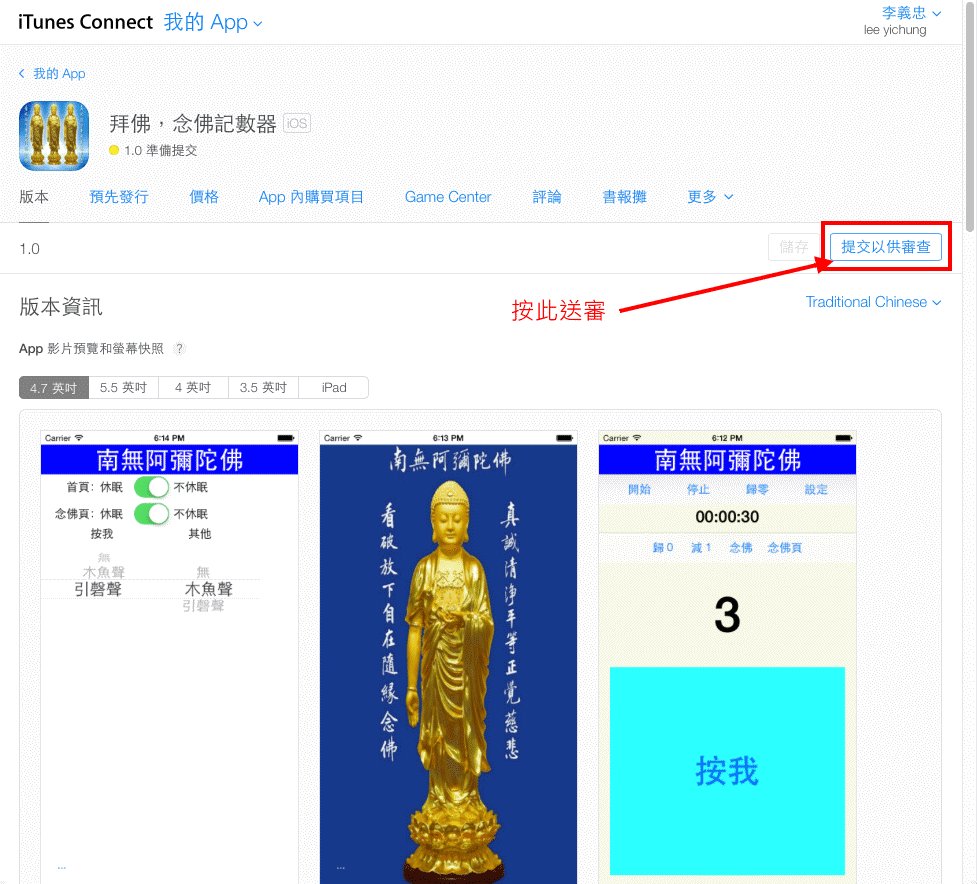
2015 拜佛、念佛記數器 IOS APP 上架 流程 步驟 說明

所先當然先將APP寫好 然後 測試完成沒有BUG

上架步驟1:到 Apple Developer 註冊一個新的APP ID

步驟2: Certificates 的 Production 要增加一個簽證
步驟3: 增加 Profiles Distributions
簽證大概就是這三個要做,其實我也不是很清楚真確的步驟 每次上架APP都弄好久,想說把圖抓出來大家會比較清楚。
步驟四: XCODE APP ICON 要先設定好
把這些圖都設定好

步驟五:APP設定 Profile

步驟六:在 iTunes Connect 我的App 增加APP
增加APP要特別注意下圖 2015-10-07 原來SKU可以自己命名 不要重複即可
下圖是錯誤的觀念


步驟七:增加完成 開始填入 APP 相關資訊
完成後先按儲存
步驟八:上傳APP程式

 下圖是 檢查成功了
下圖 點選 Submit 正式上傳APP
上傳成功 如下圖
步驟九:回到 iTuns Connect APP 編輯
步驟十: 價格設定

價格及日期 設定好 就可以 提交 送審了
步驟十一:提交審查選項 現在已經有中文了 真方便

提交審查完成  狀態:正在等待審核

就這樣 等待審核完成 通知,若核准 在 App Store 就可以找到 APP安裝了 ^_^*

2015-02-04

Android Studio App 開發 記錄一些常用功能

// 設定不休眠
getWindow().addFlags(android.view.WindowManager.LayoutParams.FLAG_KEEP_SCREEN_ON);

// 播放音效
SoundPool mySound;
mySound = new SoundPool(1, AudioManager.STREAM_MUSIC, 0);
ensId = mySound.load(this, R.raw.ens, 1);
mySound.play(ensId, 1, 1, 1, 0, 1);

// 播放音樂
MediaPlayer mp;
mp = MediaPlayer.create(MainActivity.this, R.raw.amitabha);
if (mp.isPlaying()) {  // 播放中
   mp.pause(); // 音樂暫停
} else {
    mp.start(); // 播放
    mp.setLooping(true); // 設定單曲循環播放
}

// 切換到念佛頁面
Button gotoBuddhaPage = (Button)findViewById(R.id.PageToBuddha);
gotoBuddhaPage.setOnClickListener(
new Button.OnClickListener() {
   public void onClick(View v) {
if (mp.isPlaying()) { mp.stop();  }
Intent intent = new Intent();
intent.setClass(MainActivity.this, MainActivity2.class);
startActivity(intent);
finish();
   }
}
);

// 儲存記數記錄
SharedPreferences preferences = getSharedPreferences("preCount3File", MODE_PRIVATE);
preferences.edit().putInt("counter", counter).apply(); // this or submit();
// 讀取記數記錄
counter = preferences.getInt("counter", 0);

// 顯示 記數數值
TextView showCount = (TextView)findViewById(R.id.showCount);
showCount.setText(String.valueOf(++counter));

// 設定按鈕字體顏色
Button PTB;
PTB = (Button)findViewById(R.id.PrayToBuddha);
PTB.setTextColor(Color.BLACK);
PTB.setTextColor(Color.BLUE);
// 設定按鈕背景顏色
Button clickBtn = (Button)findViewById(R.id.click_btn); // 按我
clickBtn.setBackgroundColor(Color.parseColor("#ffffbba8"));
clickBtn.setBackgroundColor(Color.parseColor("#ffa1c9ff"));

// 計時功能
private boolean startflag=false;
private int tsec=0,csec=0,cmin=0,chour=0;
Timer timer01 =new Timer(); //宣告Timer
timer01.schedule(task, 0,1000); //設定Timer(task為執行內容,0代表立刻開始,間格1秒執行一次)
private TimerTask task = new TimerTask(){
   @Override
   public void run() {
      if (startflag){
         tsec++; //如果startflag是true則每秒tsec+1
         Message message = new Message();
         message.what = 1; //傳送訊息1
         handler.sendMessage(message);
      }
   }
}
// 顯示計時
TextView timer = (TextView)findViewById(R.id.tvTimer);
timer.setText(secTimeFormat()); //s字串為00:00:00格式
private String secTimeFormat() {
   if (tsec >= 3600) {
      chour=tsec/3600;
      cmin=(tsec-chour*3600)/60;
      csec=tsec%60;
   } else {
      cmin=tsec/60;
      csec=tsec%60;
   }
   String s="";
   if(chour <10 chour="" p="" s="0">   else s=""+chour;
   if(cmin <10 cmin="" p="" s="s+">   else s=s+":"+cmin;
   if(csec < 10) s=s+":0"+csec;
   else s=s+":"+csec;
   return s;
}


xcode app swift 記錄一些常用功能

設定 APP 不休眠
UIApplication.sharedApplication().idleTimerDisabled = true

2015-02-03

網頁 使用 lightbox 遇到的2個問題 記錄一下

如何使用 請看下圖說明
第一個問題是 用 innerHTML 加入連結時 不能有 雙引號

第二個問題 IE瀏覽器 使用 lightbox 圖片無法顯示問題
需要再 網頁 最上頭 宣告 下圖 這一行,2015-02-24 這一行加入後 會影響連結的語法設定 所以要注意

2015-01-07

Google Chrome 瀏覽器 安裝IE模擬器 步驟說明

Google Chrome 瀏覽器 請先安裝IE模擬器
加入 IE Tab 後 記得要啟用

IE Tab 模擬器 安裝OK後 設定 DVR.php 程式自動轉換IE瀏覽器 執行 如下圖:
設定如下圖:


監視器資料 設定為 IP,PORT,USER,PASSWORD,DVR_NO
目前針對IE瀏覽器 DVR會自動顯示顯示在內頁裡面 如下圖:


若是 Google Chrome 瀏覽器 會彈跳出獨立視窗顯示 如下圖:
謝謝

2014-10-04

解決Eclipse找不到 java 路徑問題

在 eclipse.ini 加入下圖前2行 要先確定JAVA SDK路徑 修改

2014-09-07

MySQL 字串數值欄位 大小排序 函數 CAST 用法

order by MODULE_NUM, CAST(IO_POINT AS DECIMAL(10,2))


order by CAST(a.PRDANO01 AS UNSIGNED INTEGER)


2017-04-05 CAST(欄位名稱  不需要單引號 不然會無效
select * from Z_DPROC_PARTS 
                 where TSN = '4' 
                   and TYPE = '1' 
                   and VIE = '1'
                 ORDER BY CAST(BOM14 AS UNSIGNED) ASC, SN 


2014-08-17

念佛、拜佛 計數器 for MIT App Inventor 2

緣起:最近拜佛都有用計數器計數,想說市面上買的計數器都不是很大 ,不大好按。所以就興起 開發手機APP計數器。

若有需要下載 MIT2 原始檔 可用以下連結


另外 我有用 Android Studio 另外寫1支 上架 可以參考安裝看看

//iPhone iPad 我也有寫一樣功能 也可以安裝看看
//https://itunes.apple.com/tw/app/bai-fu-nian-fu-ji-shu-qi-fu/id965764032?l=zh&mt=8

因為第一次用 App Inventor 2 寫APP所以想把一些用法記錄下來 提供以後開發參考
主畫面
「念佛頁」次頁面

主頁初始化
計時功能

計時暫停、歸零
「按我」計數事件
計數歸零、減1、音效開關
計數記錄是用檔案存檔方式,我是為了了解用法才這樣做,不然用TinyDB也很方便。
播放佛號跟切換次頁功能
第二頁目前就是播放佛號跟設定「按我」音效 是木魚還是引罄
在開發過程遇到第一個問題是 檔案的存取,然後是時間格式的計算跟顯示,TinyDB應用,
切換頁面功能,音效播放跟媒體播放,最後是ListPicker應用方式

目前無法解決的是設定頁我想加一個可設定螢幕休眠的時間設定 還沒找到設定方式。

因為網路資源還不是很多 也是我想把他記錄下來的原因。

以上供參考 謝謝。

有疑問可來信討論 leeyichung@gmail.com